Code Mode
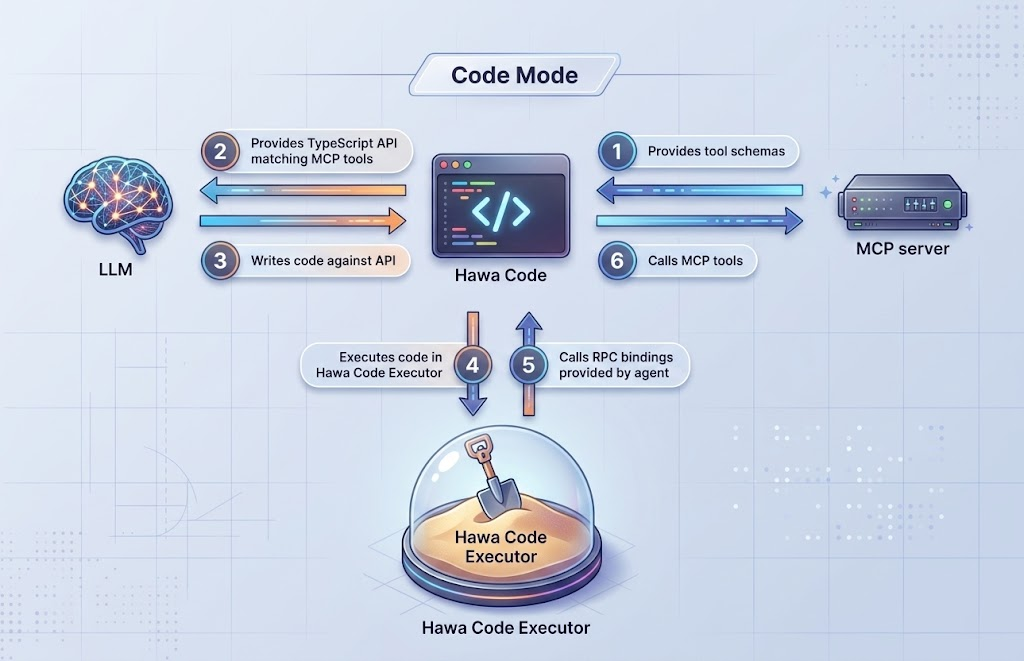
Code Mode is a built-in tool in Hawa Code that lets the model call configured MCP server capabilities through a snippet of JavaScript code, and return the execution result to the model for further processing.
In short, Code Mode turns MCP server tools into a programmable JavaScript API. You can combine multiple MCP tool calls like ordinary JS code to accomplish more complex tasks such as searching, querying, computing, and writing.
- Supports tens of thousands of MCP tools, discovered progressively on demand through Search, without taking up context window space.
- Chains multiple MCP tool calls through code, reducing back-and-forth transfer of tool call results and saving token usage.
- Common code logic can be saved and automatically reused, enabling self-evolving business functionality.
Quick Start
1. Configuration File
Code Mode uses .codemode.json to configure MCP servers, with the same format as .mcp.json.
The configuration supports two levels:
- Global config:
~/.hcode/.codemode.json - Project config:
{project-directory}/.codemode.json
The project config overrides the global config.
Example .codemode.json:
{ |
Dynamic Parameters
String values in the configuration file support ${...} placeholders for dynamic variables, which are replaced with actual values when the config is loaded.
Supported variables:
| Variable | Description |
|---|---|
${env.NAME} |
Environment variable |
${env.NAME:-default} |
Environment variable, with default used when undefined |
${home} |
User home directory |
${cwd} |
Current project directory |
${globalConfigDir} |
Global config directory (~/.hcode) |
${projectConfigDir} |
Config directory of the current project (~/.hcode/projects/<project-directory>) |
Use \${ to output a literal ${. If a variable is undefined and no default is provided, the original text is kept and a warning is logged.
Example .codemode.json:
{ |
Tip: If
.codemode.jsonis not configured separately, Code Mode will also reuse Hawa Code’s existing MCP configuration (global config, project config,.mcp.json).
2. Usage
In a conversation, ask Hawa Code to enter Code Mode, and the model will automatically generate and execute JavaScript code. No manual plugin installation or extra commands are required.
Typical use cases:
- Call an MCP tool to query data
- Combine multiple MCP tools to complete multi-step tasks
- Search for available tools and discover capabilities automatically
Code Format
Code Mode receives an asynchronous JavaScript arrow function and executes it.
You can write the full arrow function body:
async () => { |
Or you can write only the function body, and the system will wrap it automatically:
const result = await codemode.supabase.list_tables(); |
Calling MCP Tools
Configured MCP servers are exposed as JavaScript functions in the form codemode.<server>.<tool>.
For example, if you configured a server named supabase with a tool called list_tables, you can call it like this:
async () => { |
If the server or tool name contains special characters, it will be converted into a valid JavaScript identifier automatically. For example, my-server becomes codemode.my_server.
Discovering Available Tools
Searching Tools
If you are unsure where a capability is, use codemode.search():
async () => { |
The result includes tool path, server, method name, description, and match score, helping you quickly locate the tool you need.
Viewing Tool Details
Use codemode.describe() to view a tool’s type definition and parameter description:
async () => { |
You can also describe the entire server:
async () => { |
Saving and Reusing Code Snippets
You can save frequently used code as snippets for later reuse:
async () => { |
Snippets are saved in the .codemode-snippets.json file in the project directory, and like MCP tools, can be found with codemode.search() and codemode.describe().
Session Storage (codemode.session)
codemode.session is a session-level key-value storage that allows sharing state across multiple CodeMode executions within the same session. For example, you can query a batch of data in the first execution and reuse it in subsequent executions without calling the MCP tool again.
async () => { |
Combining Multiple Tools
The real value of Code Mode lies in combining multiple MCP tools to complete complex tasks.
For example:
async () => { |
Execution Environment Notes
- Code Mode runs code in an isolated Node child process and communicates with Hawa Code via IPC.
- The execution environment does not include Node.js APIs such as
fs,require, orprocess. All I/O must go through configured MCP tools. - The default timeout for a single execution is 60 seconds, after which it will be terminated automatically.
- Standard JavaScript syntax is supported, but TypeScript type annotations are not supported.
Permissions and Confirmation
Code Mode is a tool that requires user confirmation. Before execution, you will be asked whether to allow it; the code runs only after confirmation. If auto-permission mode is enabled, you may not need to confirm every time when conditions are met.
Common Scenarios
| Scenario | Example |
|---|---|
| Query database | codemode.supabase.query({ sql: "SELECT * FROM users" }) |
| Query GitHub info | codemode.github.search_issues({ query: "repo:owner/repo is:open" }) |
| Combine tools | List tables first, then query each table’s schema |
| Reuse logic | Save common queries as snippets |
Troubleshooting
Execution Timeout
If code execution exceeds 60 seconds, a timeout error is returned. Consider splitting it into multiple steps or reducing the amount of data processed in a single run.
Tool Not Found
- Check whether
.codemode.jsonis configured correctly. - Use
codemode.search("keyword")to confirm the tool is loaded. - Use
codemode.describe("server.tool")to verify the tool name.
Result Too Long
Code Mode automatically truncates overly long results to avoid consuming too much context. If the result is truncated, try using more precise query conditions or fetching data in batches.
Summary
Code Mode turns MCP server capabilities into executable JavaScript code, allowing the model to:
- Discover tools automatically
- Combine multiple tools
- Reuse common code snippets
- Execute in a secure sandbox environment
With Code Mode, you can let Hawa Code handle more complex and flexible multi-step tasks.