Hawa Code supports Web Notifications. When you have the Hawa Code web console open but the browser window or tab is not in the foreground, Hawa Code can send a system notification to alert you whenever a tool call requires your confirmation.
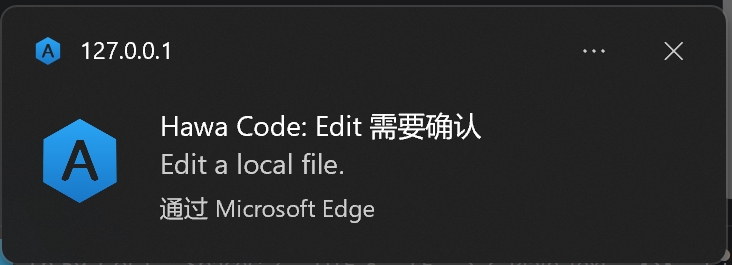
Enabling Notifications
Web notifications require browser permission before they can be used. You can enable them in either of the following ways.
Enable from the tool confirmation dialog
When Hawa Code runs a tool that requires confirmation, an Enable notifications button appears at the bottom of the confirmation dialog. Click it to grant the browser permission to send background notifications while the page is hidden.
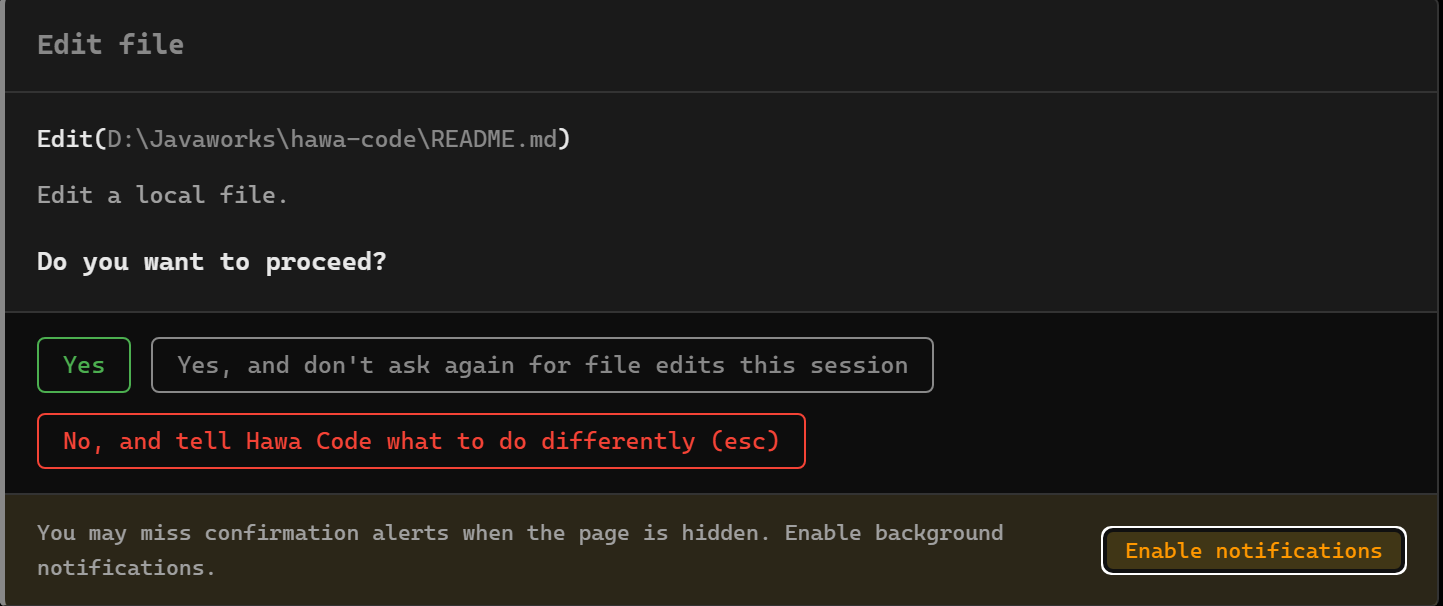
Enable manually in browser settings
If you did not enable notifications from the confirmation dialog, you can manually add a site exception in Chrome or Edge:
- Enter the following URL in the address bar and open it:
chrome://settings/content/notifications - Add the Hawa Code site URL.
- Allow the site to send notifications.
Once permission is granted, Hawa Code will automatically show system notifications when a tool call needs your confirmation.